Raspberry Pi Pico projects for beginners
These are the beginner projects on a Pico or Pico W, many in MicroPython, with blink, buttons, knobs, buzzers, NeoPixels and a first sensor. There are 65. Here are 24, from “Pico button” to “CircuitPython BME280 on a Pico”. Each card says what the project does, the board and parts it needs and its level, and Open in the simulator runs it in your browser in one click, with no account.
How to pick your first one
- Start with “CircuitPython BME280 on a Pico”, a beginner project that needs a BME280 sensor.
- All of them run on a Raspberry Pi Pico, so that is the one board you need.
- The parts used most here are the LED (18 projects), the push button (8) and the potentiometer (5). With those on hand, most of this list is open to you.
- MicroPython runs a line at a time, so a mistake shows the line it is on. Read the error, fix that line and press Run again.
24 projects of 65
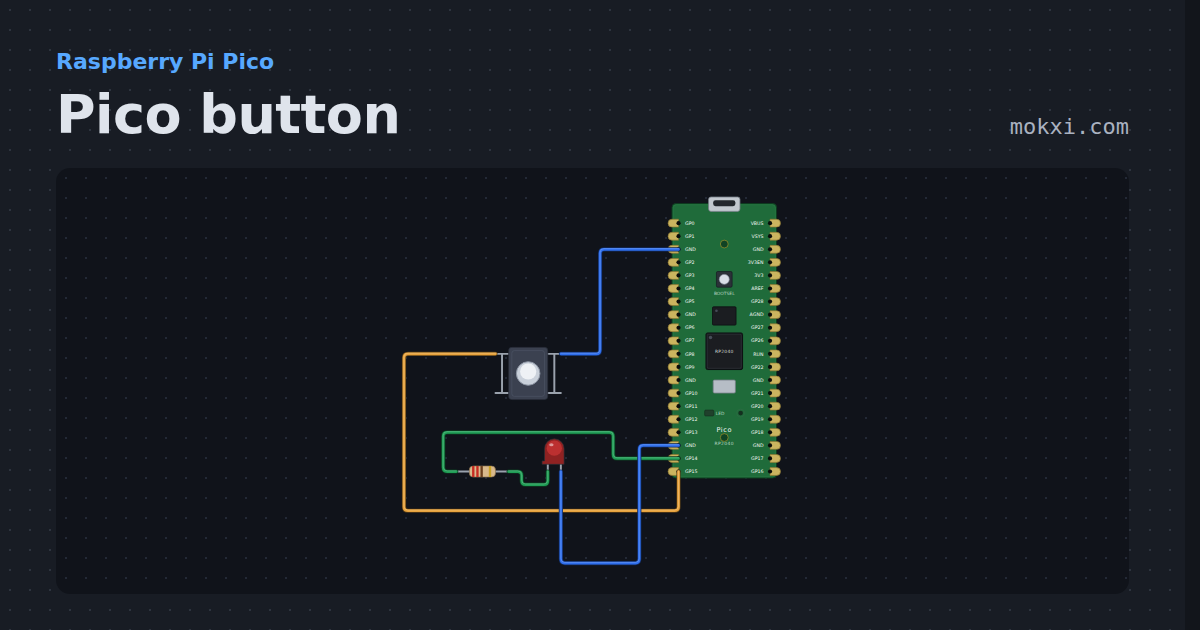
Pico button
A button on GP15 with the internal pull-up lights the LED on GP25.
- Board
- Raspberry Pi Pico
- Parts
- Push button, resistor, LED
- Level
- Beginner
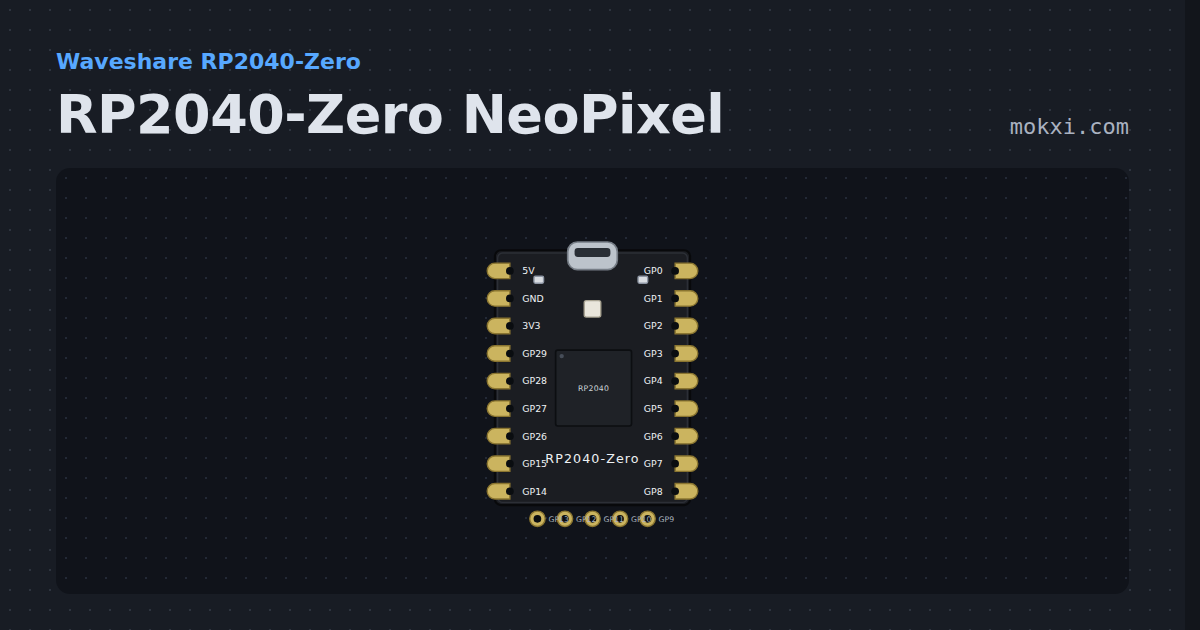
RP2040-Zero NeoPixel
The Waveshare RP2040-Zero fades its own NeoPixel on GP16 around the color wheel.
- Board
- Waveshare RP2040-Zero
- Parts
- Just the board
- Level
- Beginner
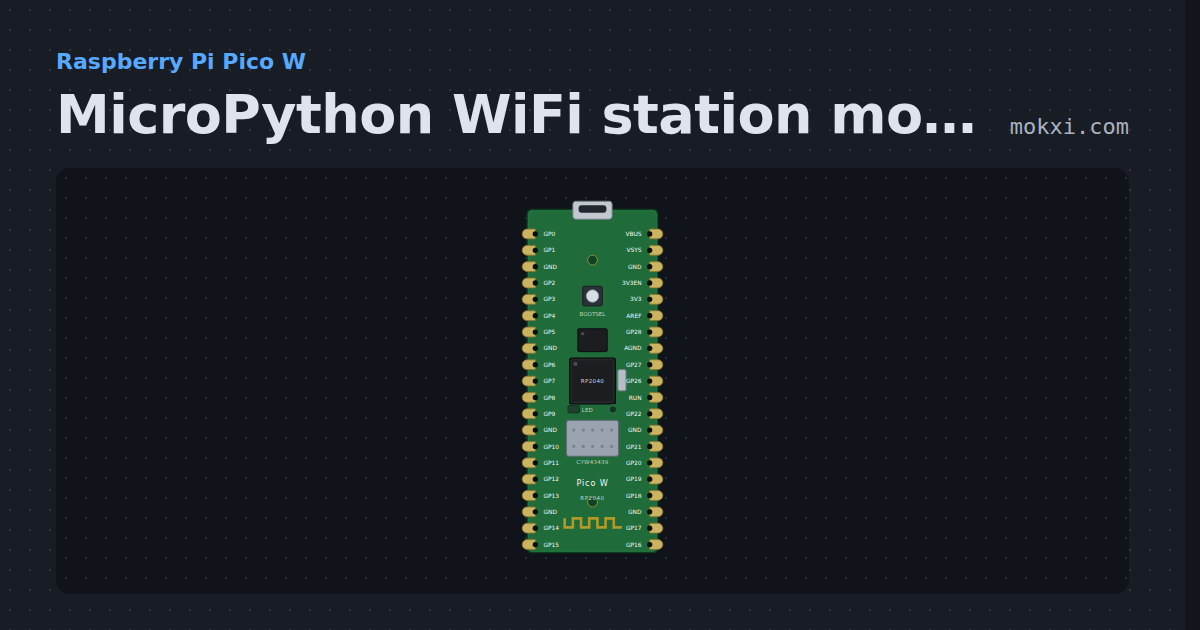
MicroPython WiFi station mode on a Pico W
MicroPython on a Raspberry Pi Pico W: network.WLAN joins Mokxi’s simulated access point and prints the IP address, mask and gateway it was given.
- Board
- Raspberry Pi Pico W
- Parts
- Just the board
- Level
- Beginner
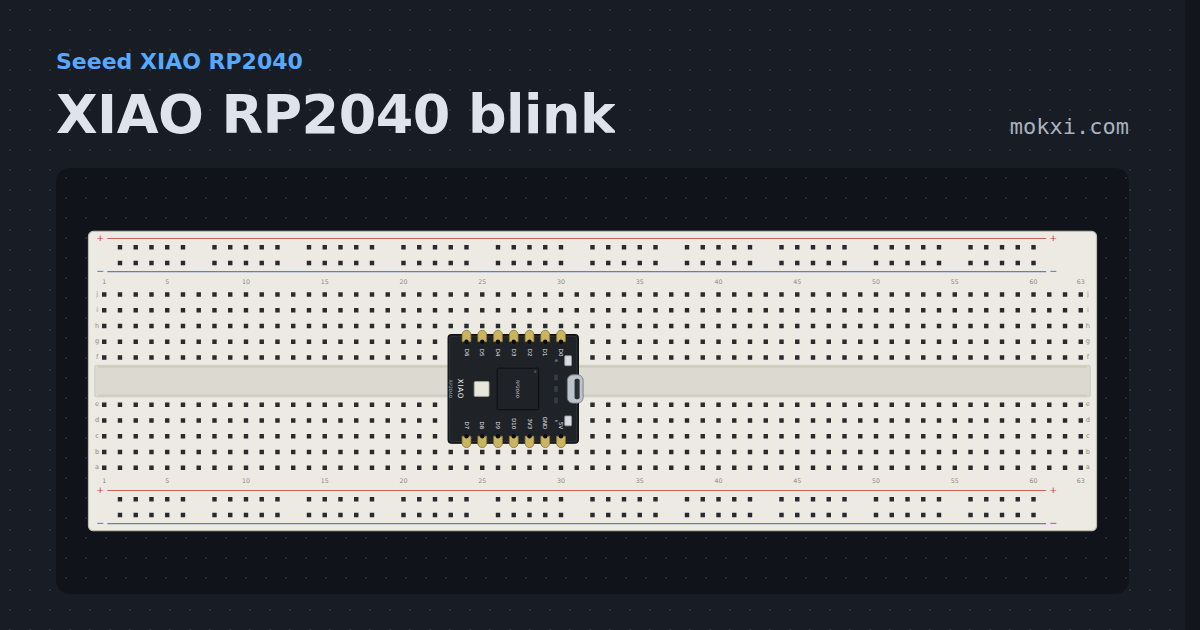
XIAO RP2040 blink
The red user LED of the XIAO RP2040, on GPIO 17, which lights when the pin is LOW.
- Board
- Seeed XIAO RP2040
- Parts
- Just the board
- Level
- Beginner
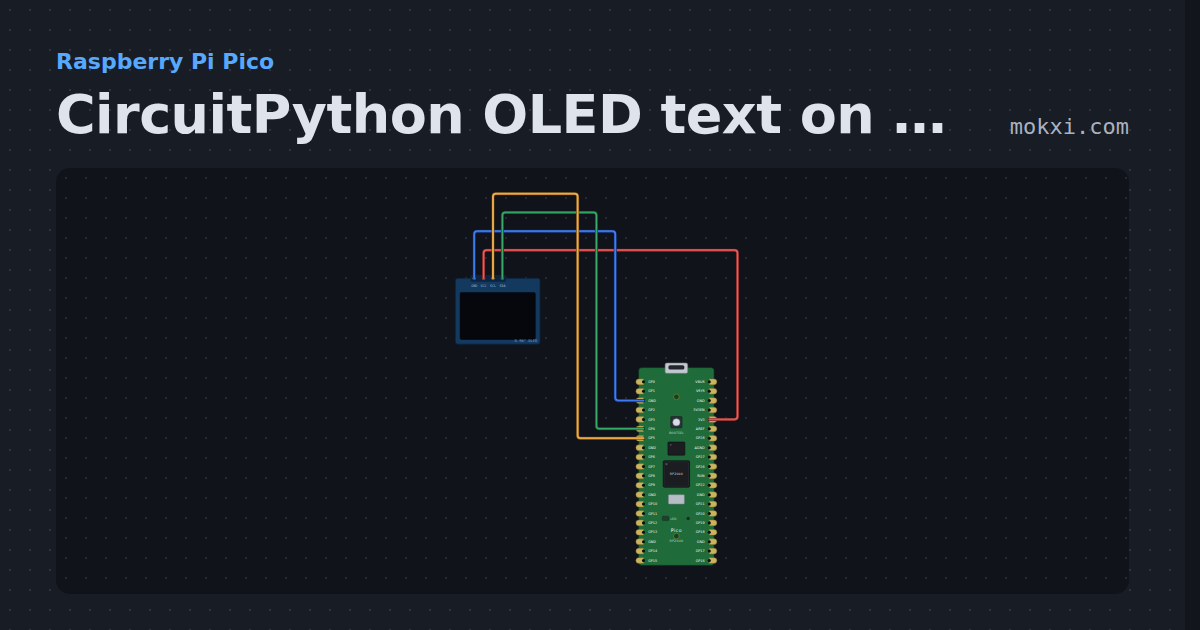
CircuitPython OLED text on a Pico
CircuitPython on a Raspberry Pi Pico: displayio and Adafruit’s display_text draw a title and a counter on an SSD1306 OLED over I2C.
- Board
- Raspberry Pi Pico
- Parts
- SSD1306 OLED display
- Level
- Beginner
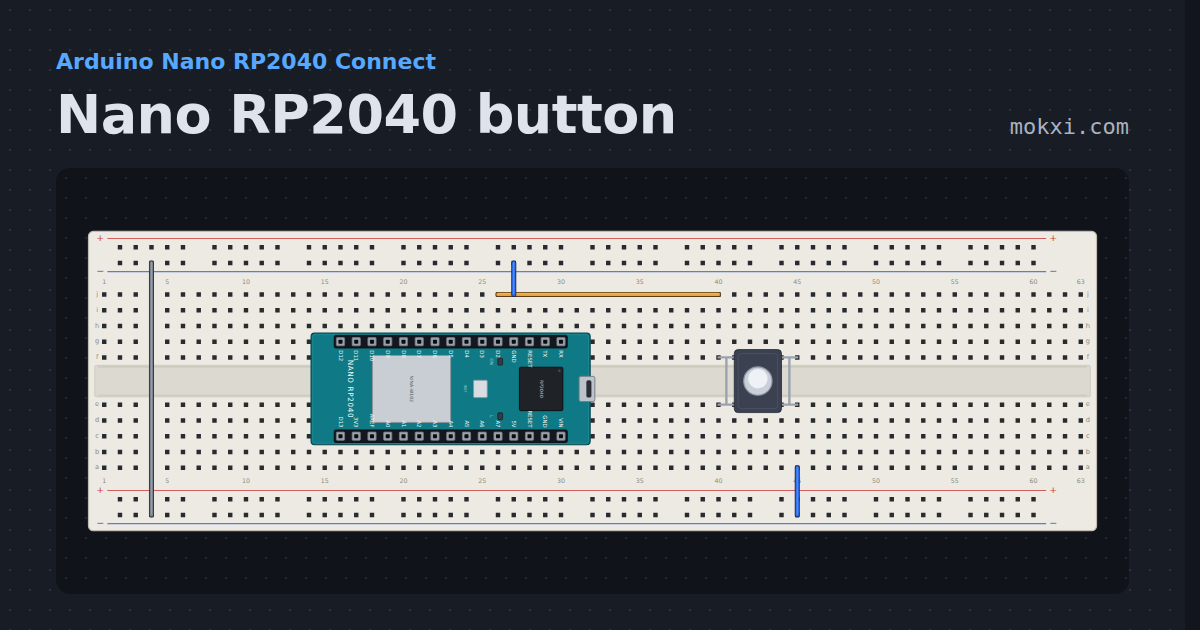
Nano RP2040 button
A pushbutton on D2 of the Nano RP2040 Connect lights the LED on D13, with the RP2040’s own pull-up and the Nano’s pin names.
- Board
- Arduino Nano RP2040 Connect
- Parts
- Push button
- Level
- Beginner
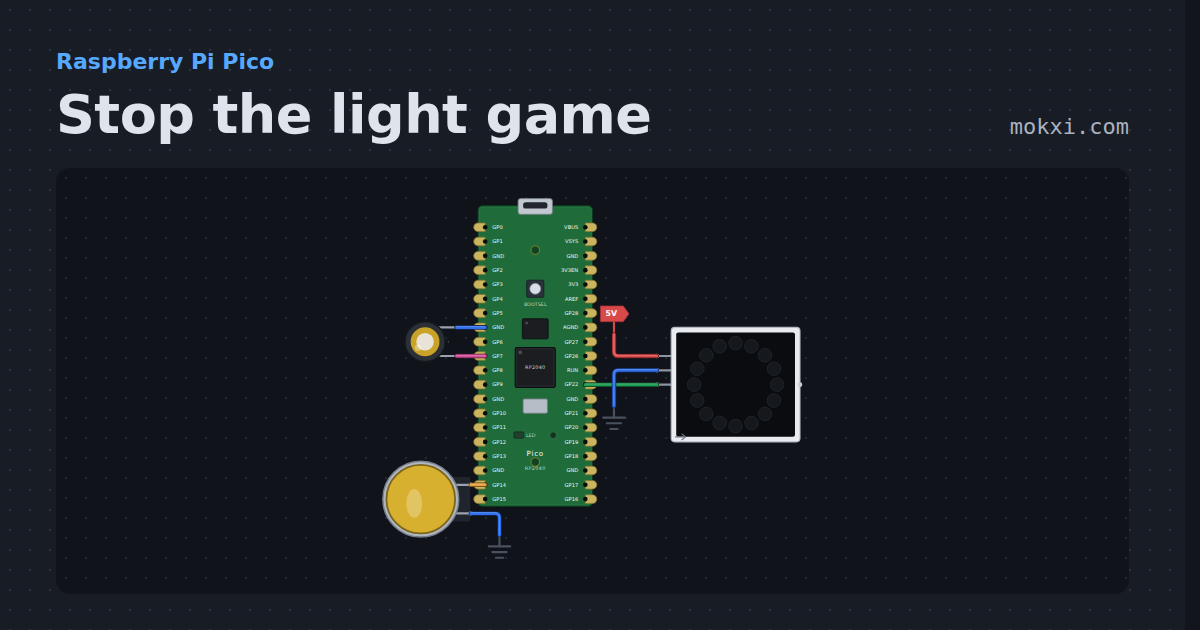
Stop the light game
Stop the light game on a Raspberry Pi Pico: press the button as a red light runs onto the green LED of a 16-LED NeoPixel ring, faster every level.
- Board
- Raspberry Pi Pico
- Parts
- WS2812 NeoPixel LEDs, arcade button, piezo speaker
- Level
- Beginner
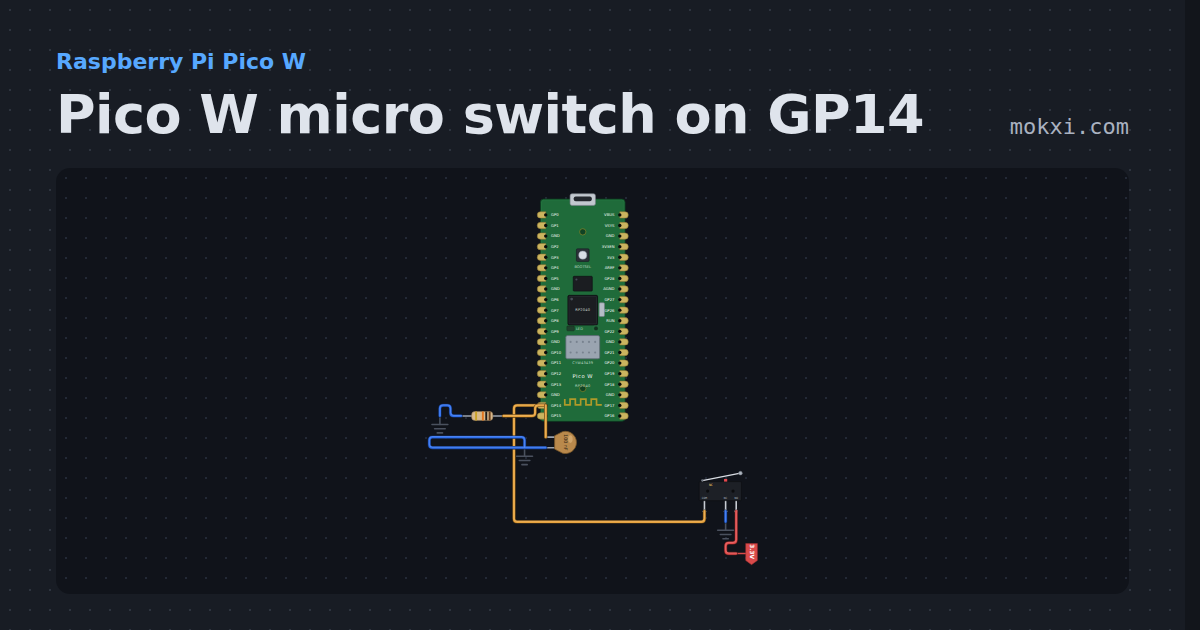
Pico W micro switch on GP14
MicroPython on a Pico W: a lever micro switch with its common on GP14 reads 1 while pressed and 0 at rest, and prints each change.
- Board
- Raspberry Pi Pico W
- Parts
- Limit switch, resistor, capacitor
- Level
- Beginner
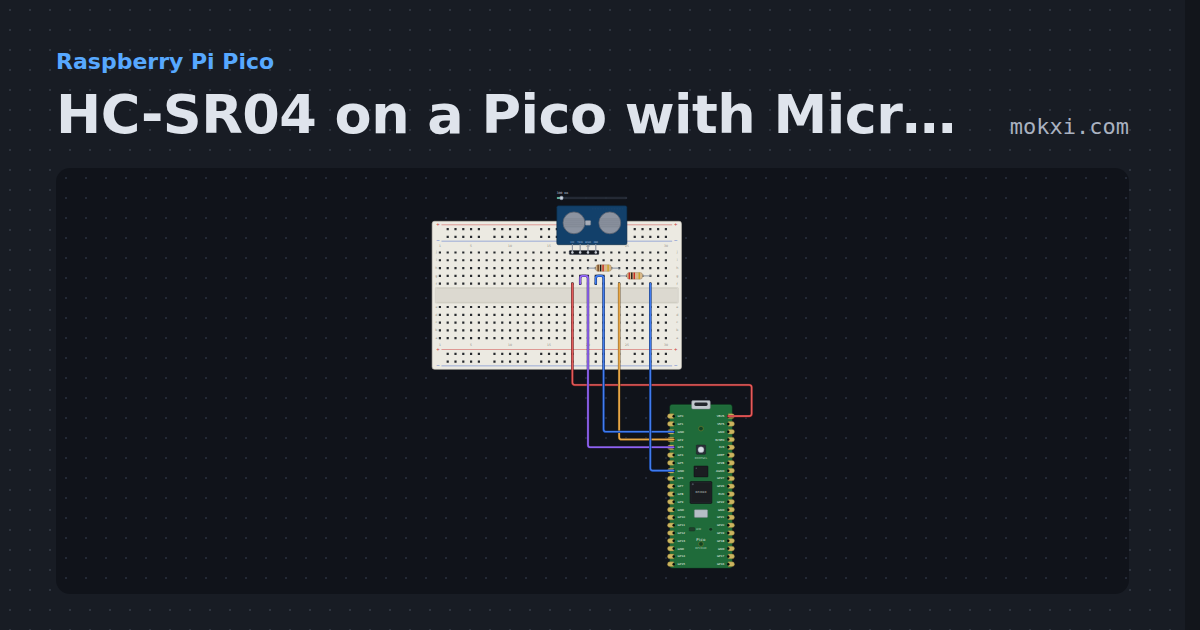
HC-SR04 on a Pico with MicroPython
MicroPython on a Raspberry Pi Pico: machine.time_pulse_us() times an HC-SR04’s echo, divided down to 3.3 V, and prints the distance twice a second.
- Board
- Raspberry Pi Pico
- Parts
- HC-SR04 ultrasonic sensor, resistor
- Level
- Beginner
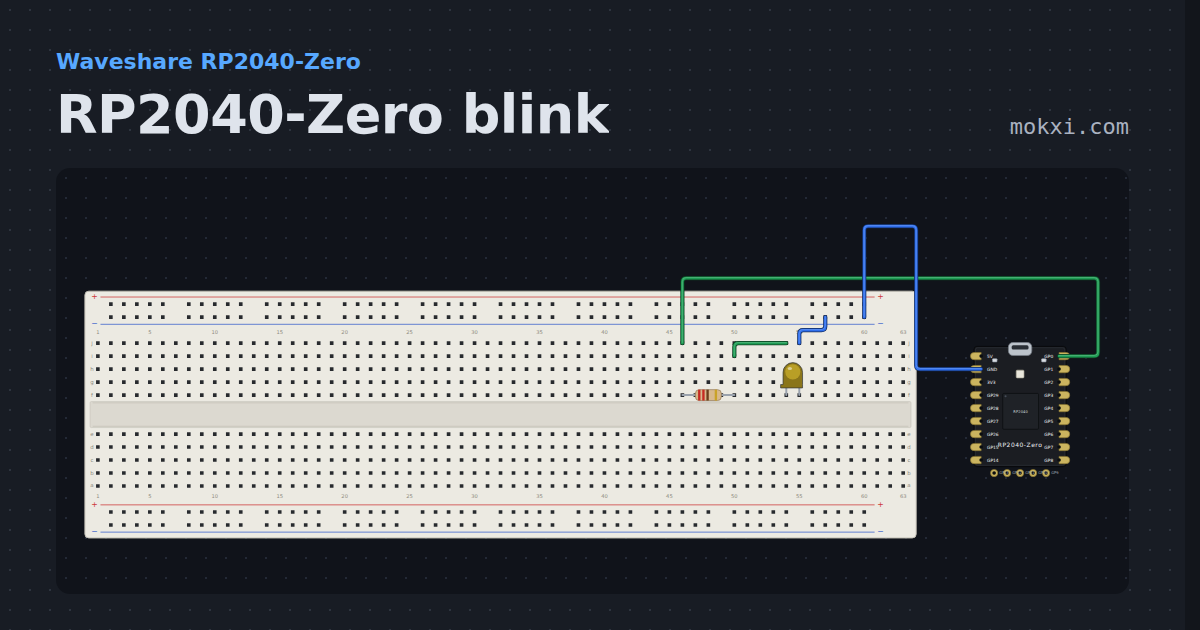
RP2040-Zero blink
An LED on GP0 of the RP2040-Zero, which has no plain LED of its own, with the board beside the breadboard.
- Board
- Waveshare RP2040-Zero
- Parts
- Resistor, LED
- Level
- Beginner
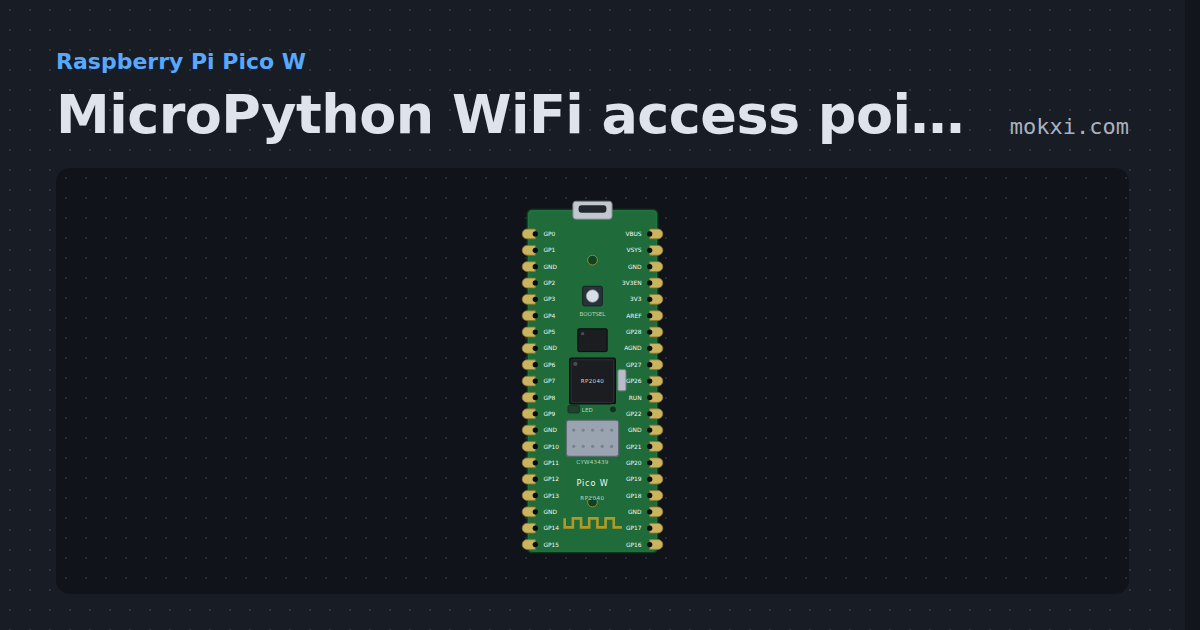
MicroPython WiFi access point mode on a Pico W
MicroPython on a Raspberry Pi Pico W: network.WLAN(AP_IF) starts the board’s own access point and prints its name and IP settings.
- Board
- Raspberry Pi Pico W
- Parts
- Just the board
- Level
- Beginner
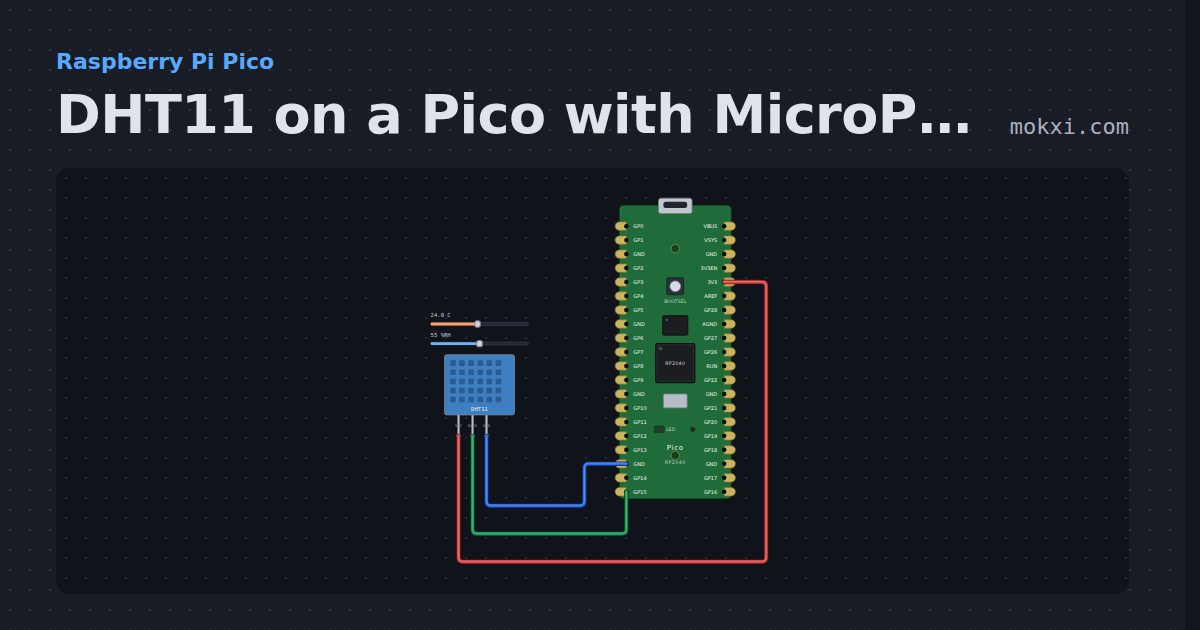
DHT11 on a Pico with MicroPython
MicroPython’s built-in dht module on a Raspberry Pi Pico: a DHT11 on GP15 prints the temperature and humidity every two seconds.
- Board
- Raspberry Pi Pico
- Parts
- DHT11 or DHT22 sensor
- Level
- Beginner
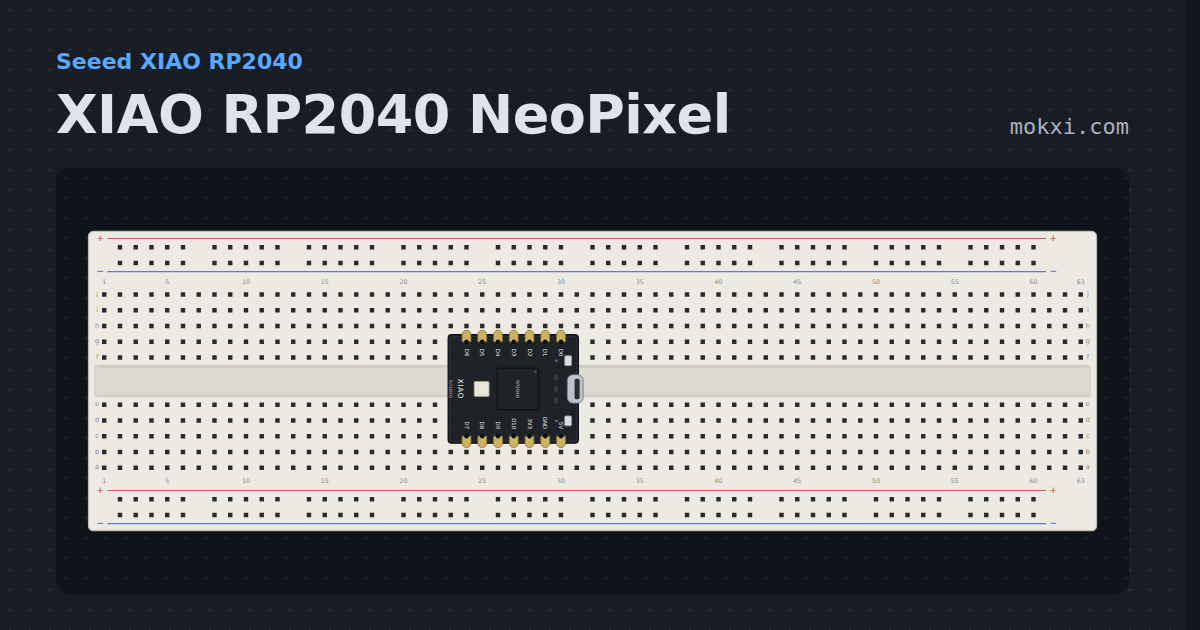
XIAO RP2040 NeoPixel
The XIAO RP2040 powers its own NeoPixel from GPIO 11 and fades it around the color wheel on GPIO 12.
- Board
- Seeed XIAO RP2040
- Parts
- Just the board
- Level
- Beginner
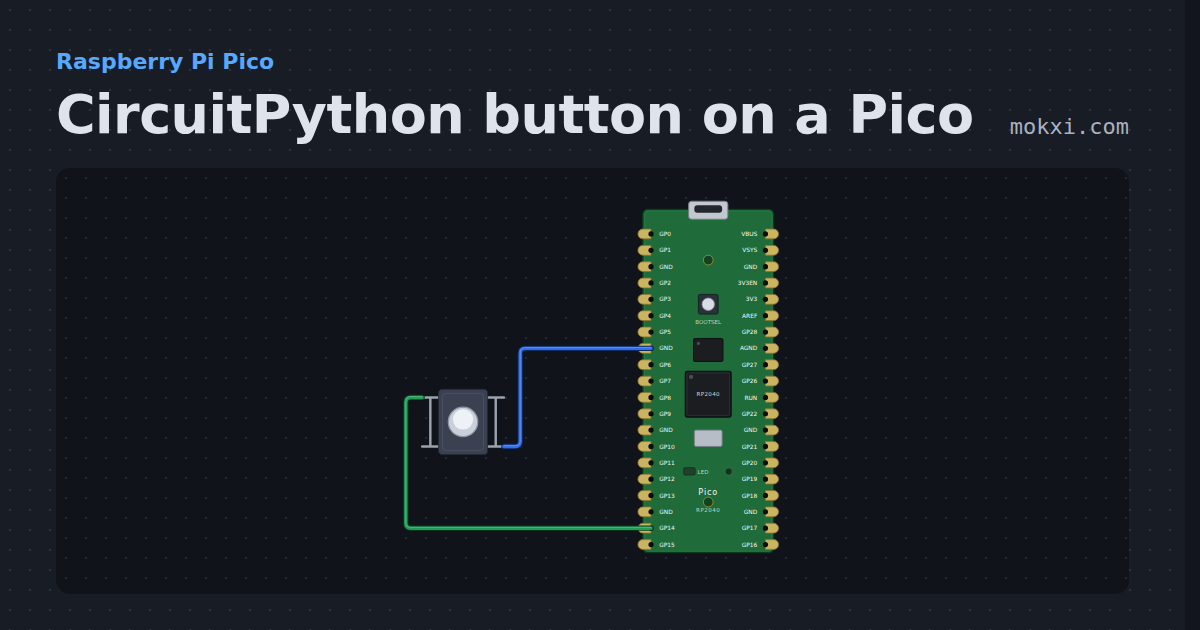
CircuitPython button on a Pico
CircuitPython on a Raspberry Pi Pico: a button on GP14 with the pin’s pull-up lights the board’s LED while it is held and counts each press.
- Board
- Raspberry Pi Pico
- Parts
- Push button
- Level
- Beginner
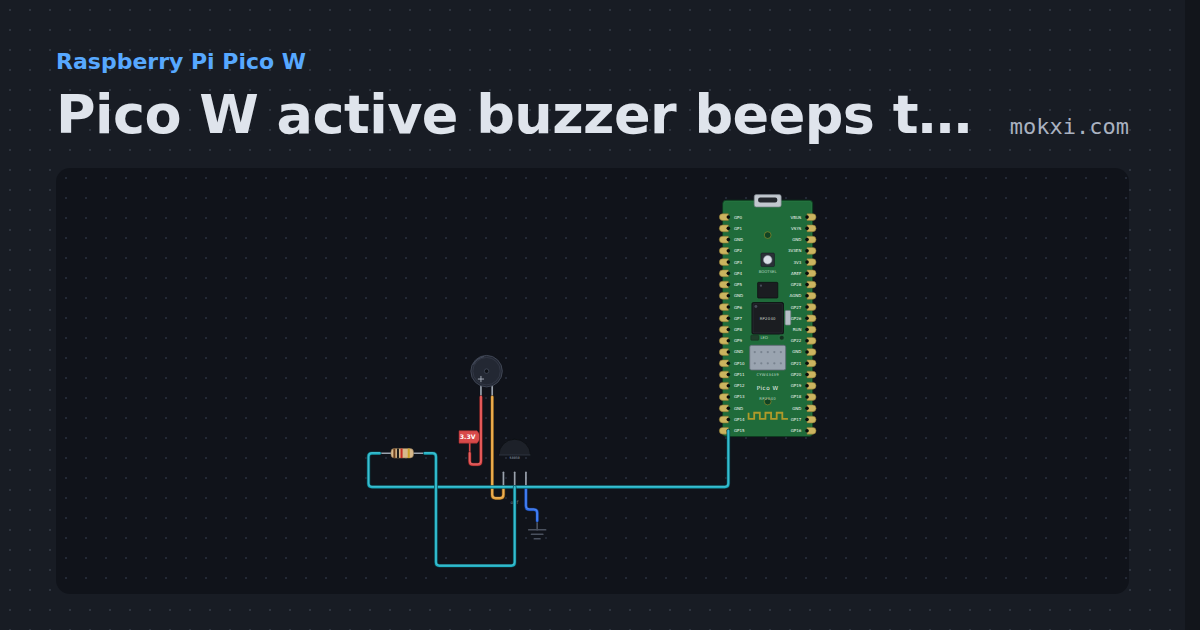
Pico W active buzzer beeps through an S8050
MicroPython on a Pico W: GP15 switches an S8050 that sounds an active buzzer: four short beeps, a pause of a second, and again.
- Board
- Raspberry Pi Pico W
- Parts
- Buzzer, transistor, resistor
- Level
- Beginner
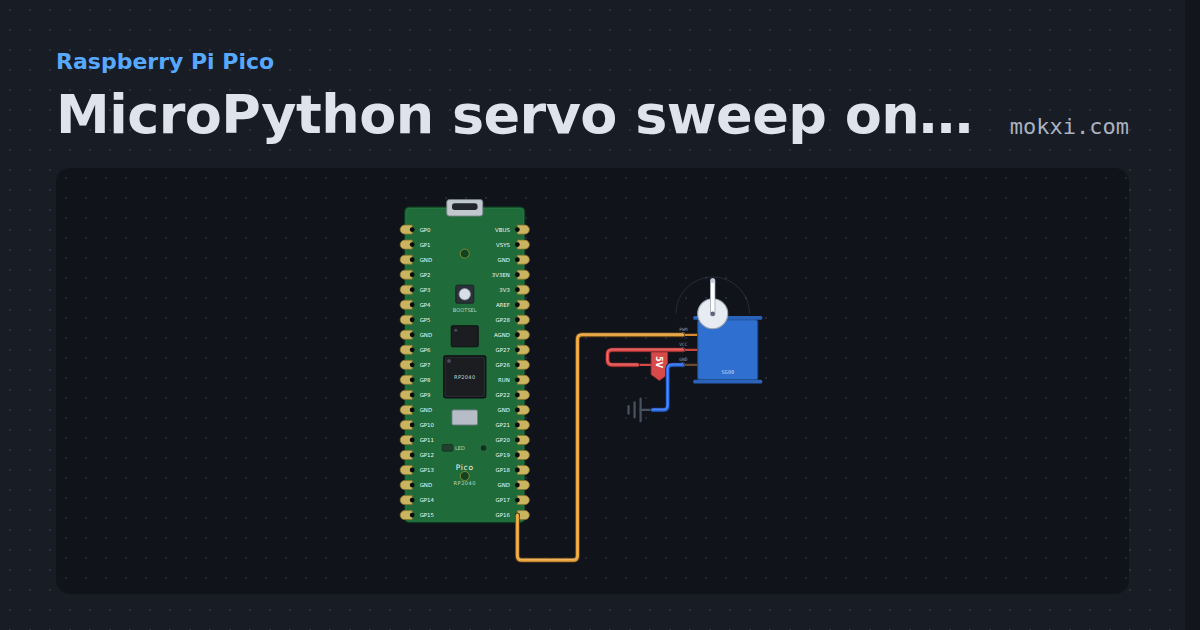
MicroPython servo sweep on a Pico, signal on GP16
MicroPython on a Raspberry Pi Pico: 50 Hz PWM on GP16 sweeps a servo from 0 to 180 degrees and back, one degree every 15 ms.
- Board
- Raspberry Pi Pico
- Parts
- Servo motor
- Level
- Beginner
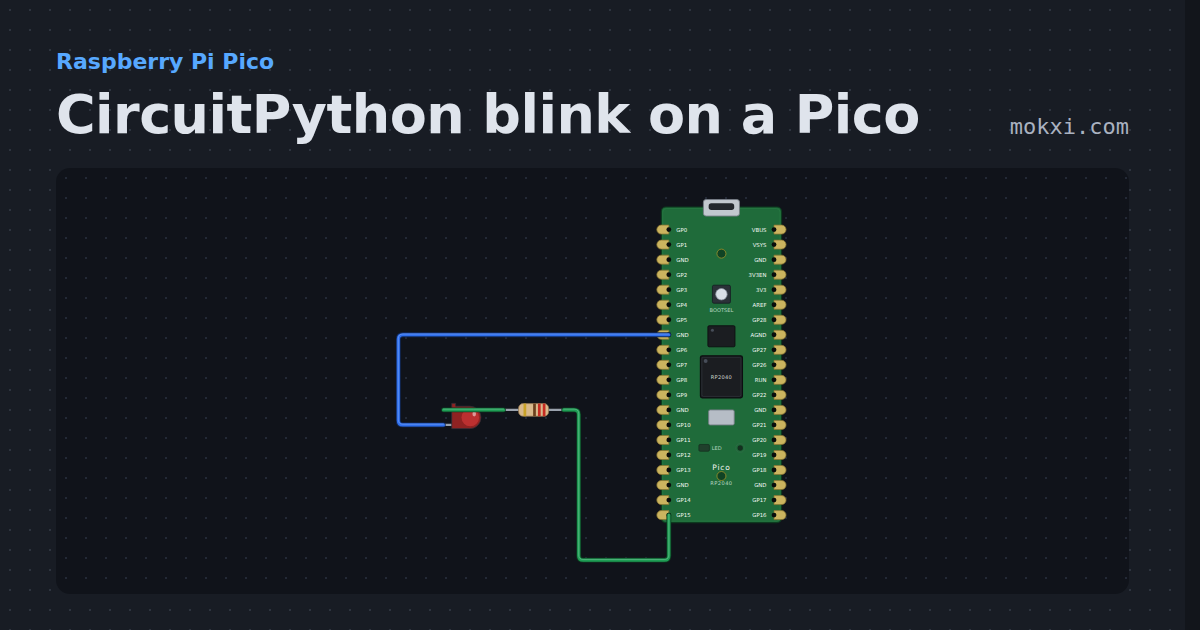
CircuitPython blink on a Pico
CircuitPython on a Raspberry Pi Pico: digitalio blinks the board’s own LED and a red LED on GP15, once a second, and print() says on and off.
- Board
- Raspberry Pi Pico
- Parts
- Resistor, LED
- Level
- Beginner
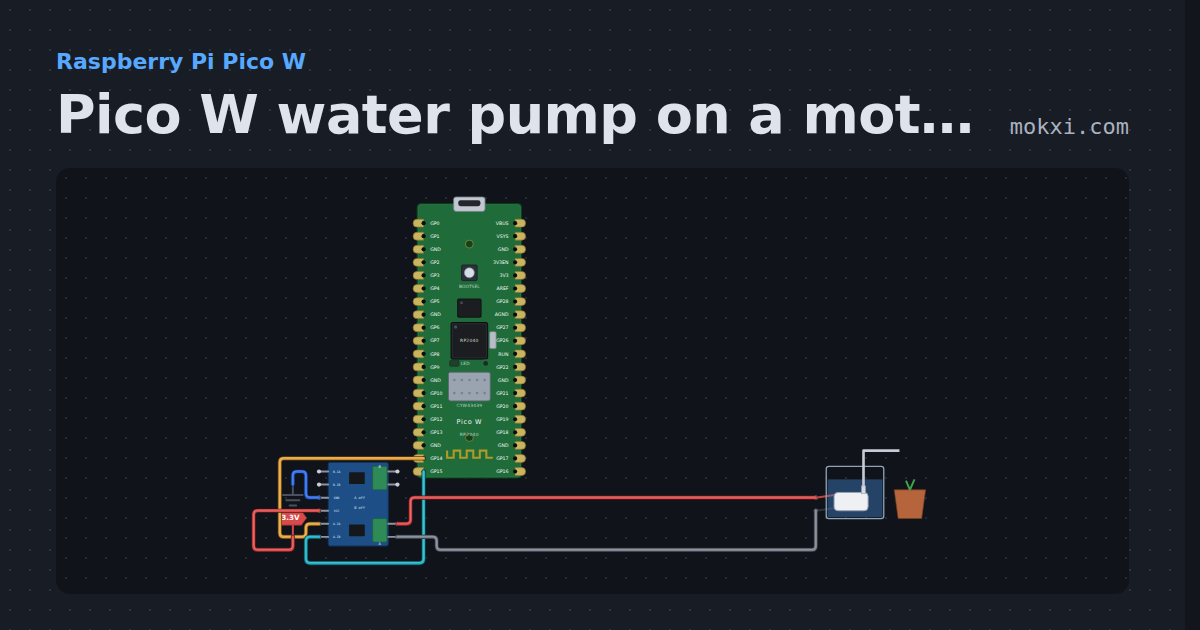
Pico W water pump on a motor driver
MicroPython on a Pico W: GP14 high and GP15 low keep a small DC water pump running through a two-input motor driver.
- Board
- Raspberry Pi Pico W
- Parts
- L9110S motor driver, mini water pump
- Level
- Beginner
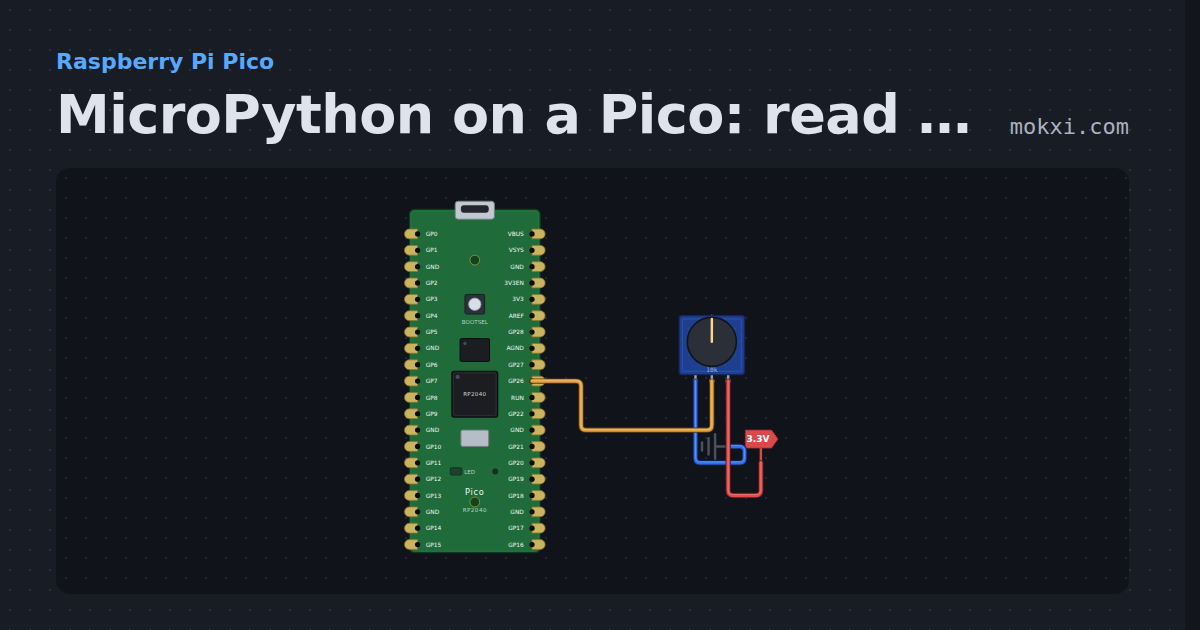
MicroPython on a Pico: read a potentiometer on GP26
MicroPython on a Raspberry Pi Pico: machine.ADC reads a potentiometer’s wiper on GP26 and prints the reading and its voltage ten times a second.
- Board
- Raspberry Pi Pico
- Parts
- Potentiometer
- Level
- Beginner
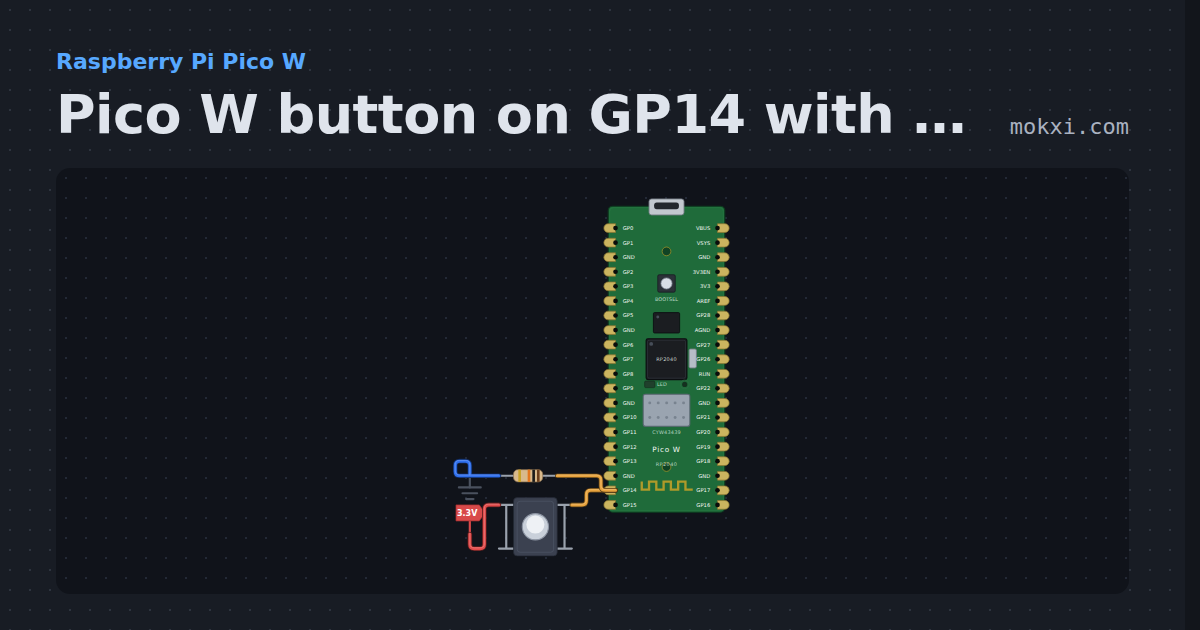
Pico W button on GP14 with a pull-down
MicroPython on a Pico W: a push button from 3.3 V to GP14, held low by a 10k pull-down, prints a line to the Serial Monitor at each press.
- Board
- Raspberry Pi Pico W
- Parts
- Push button, resistor
- Level
- Beginner
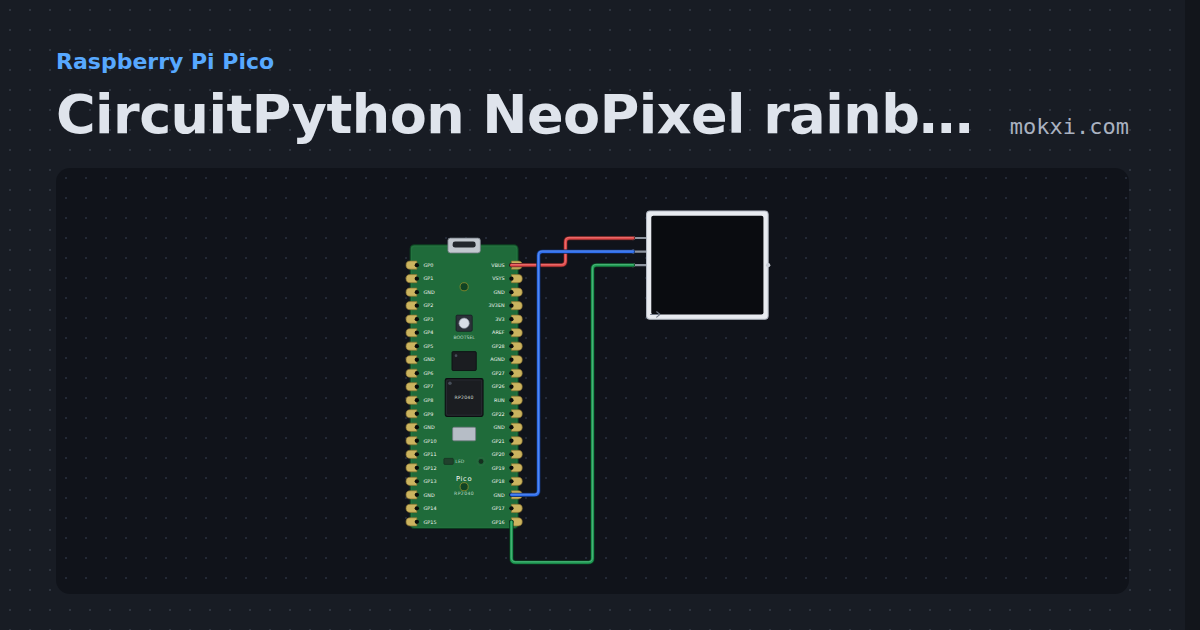
CircuitPython NeoPixel rainbow on a Pico
CircuitPython on a Raspberry Pi Pico: Adafruit’s neopixel library turns a rainbow around eight WS2812 LEDs on GP16, sent by the Pico’s PIO.
- Board
- Raspberry Pi Pico
- Parts
- WS2812 NeoPixel LEDs
- Level
- Beginner
MicroPython on a Pico: import a module of your own
MicroPython on a Raspberry Pi Pico: main.py imports helpers.py from the next tab and prints a random number from it once a second.
- Board
- Raspberry Pi Pico
- Parts
- Just the board
- Level
- Beginner
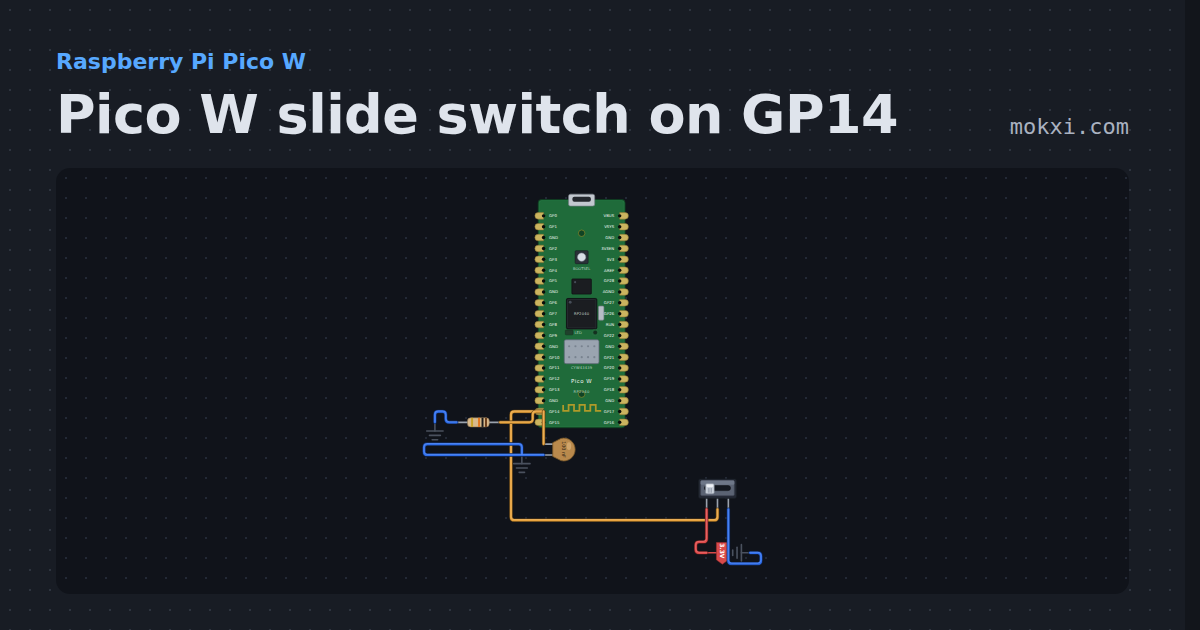
Pico W slide switch on GP14
MicroPython on a Pico W: a slide switch puts GP14 on 3.3 V or on ground, with a 10k and a 100 nF to steady it, and the program prints each side.
- Board
- Raspberry Pi Pico W
- Parts
- Slide switch, resistor, capacitor
- Level
- Beginner
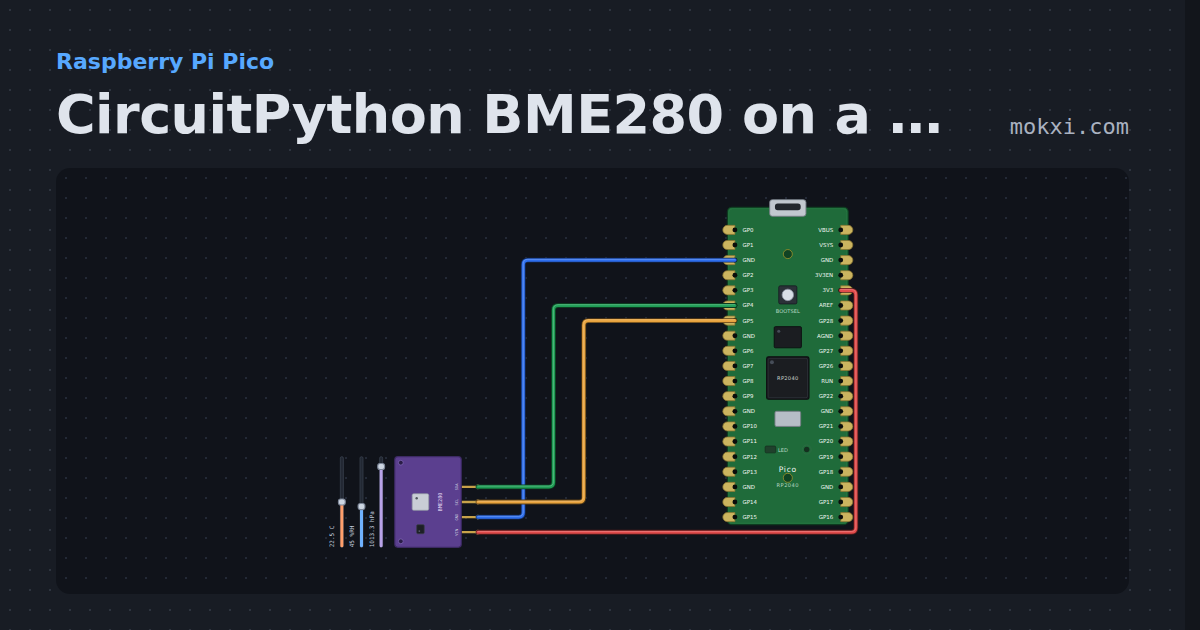
CircuitPython BME280 on a Pico
CircuitPython on a Raspberry Pi Pico: busio.I2C and Adafruit’s adafruit_bme280 read the temperature.
- Board
- Raspberry Pi Pico
- Parts
- BME280 weather sensor
- Level
- Beginner
Wiring, libraries and more ideas
Wiring guides
Library pages
More project ideas
- Raspberry Pi Pico project ideas
- LED projects for Arduino, ESP32 and Pico
- Projects with a push button
- Projects with a potentiometer
- NeoPixel projects
- Projects with a transistor
- Projects with a DHT11 or DHT22 sensor
- Projects with an RGB LED
- Servo motor projects
- Arduino game projects
- Home automation projects with ESP32 and Arduino
- IoT project ideas for ESP32 and Pico W