An LM35 simulator: a temperature sensor on an Arduino
Mokxi is a free online LM35 temperature sensor simulator that runs in your browser, with nothing to install and no account needed. An LM35 on A0 of an Arduino Uno, read with analogRead five times a second. Drag the temperature and the serial monitor prints the raw count and the millivolts, so you can check the math in your sketch before the sensor is on a breadboard.
- 505parts on the bench
- 45boards running now
- 1.00xreal time, on every board
What you can do here
In the circuit above, or in the editor it opens.
- Set the temperature anywhere from -55 to 150 °C
- Read the raw analogRead count and the millivolts on the serial monitor
- Turn millivolts into degrees: divide by ten
- See why one count is about half a degree on a 5 V Uno
- See what a single supply does below 0 °C
- Add an LCD or a fan and build a thermostat
What the running circuit shows
10 mV a degree, with no offset.
An LM35’s middle leg puts out 10 mV for every degree Celsius, starting from 0 V at 0 °C. At the 22.5 °C it starts on, that is 225 mV, and the Uno reads a count of 46, which the sketch prints as 224 mV. Drag it to 25 °C and the line becomes a count of 51 and 249 mV; at 37 °C, 76 and 371 mV; at 100 °C, 205 and 1001 mV. Divide the millivolts by ten and you have the temperature.
Those readings sit a little under the truth, and the reason is the useful part. analogRead splits 0 to 5 V into 1024 steps, so one count is about 4.9 mV, nearly half a degree. 225 mV falls between counts 46 and 47 and reads as 46, and no reading can be finer than that half degree. A sketch that prints 22.46 °C is printing digits the hardware never measured.
Drag the slider below zero and the reading stops at a count of 0. With its ground leg on ground and one supply, an LM35 cannot go below 0 V, so it reads 0 °C for anything colder. The datasheet’s way to read below zero needs a resistor to a negative supply.
How the sensor is modeled
The datasheet’s straight line, and what it leaves out.
The model is the datasheet’s transfer function: 10 mV a degree from 0 V, across the rated -55 to 150 °C, on a supply of 4 V or more; below 4 V it does nothing at all. That is the LM35’s main difference from the TMP36 beside it in the parts bin, which reads 500 mV at 0 °C so that it can go below zero on one supply. Use one part’s formula on the other and the reading is 50 degrees out.
What it leaves out: the sensor’s own error, about half a degree at room temperature; self-heating; the time it takes to follow a change; and noise. The model has none, so the count holds still. On a real bench a reading that jumps by a count or two usually comes from a long wire to the sensor or a motor on the same supply, and averaging a few readings settles it.
Three steps from a blank tab to a running circuit.
Open the editor
It runs in your browser tab. Nothing to install, and you need no account to start.
Your first projectWire it and write the code
Drag parts onto a breadboard, run each wire from pin to pin, and write the sketch beside it.
WiringPress Run
Your sketch compiles in the tab and runs on a model of the chip, with the Serial Monitor beside it.
Run and serial
Open a project and press Run.
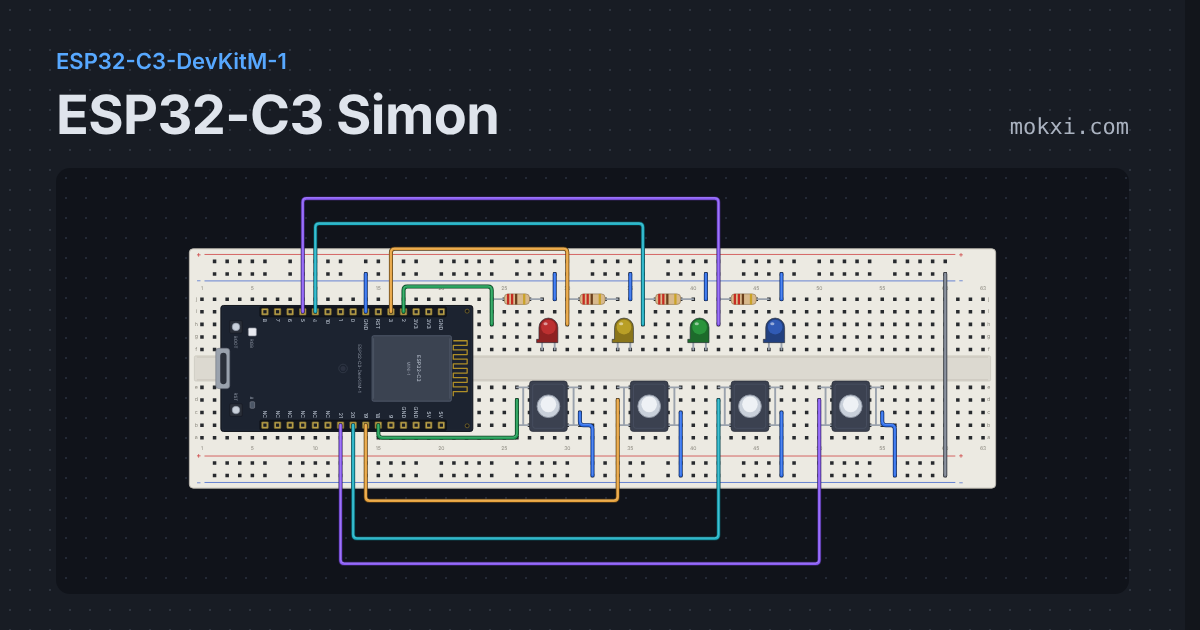
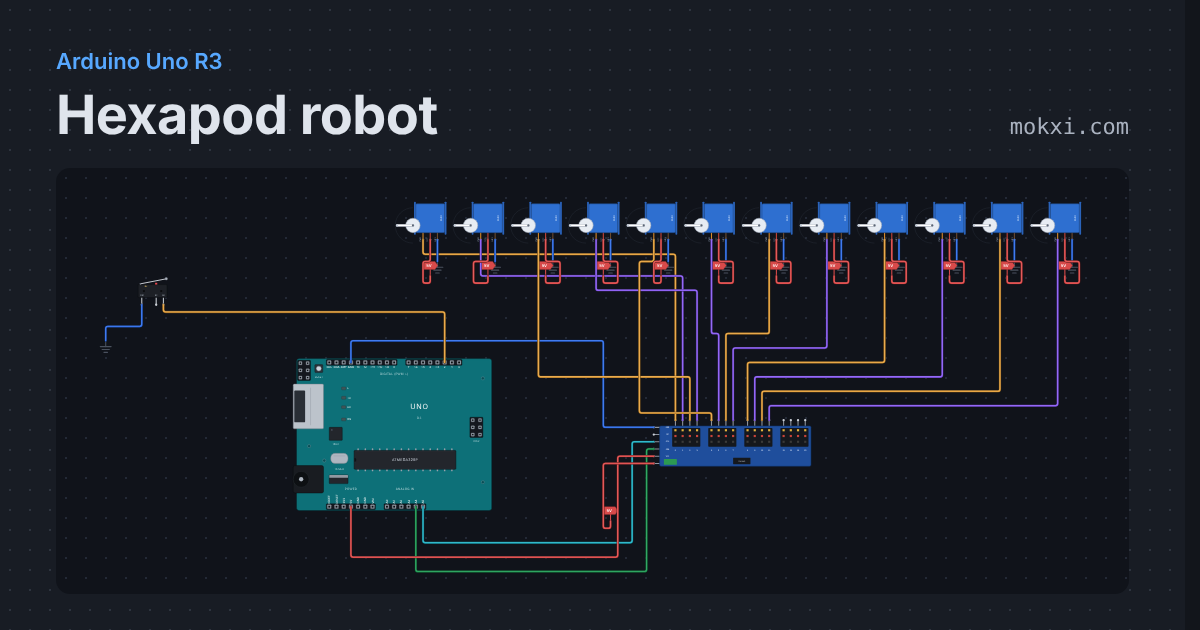
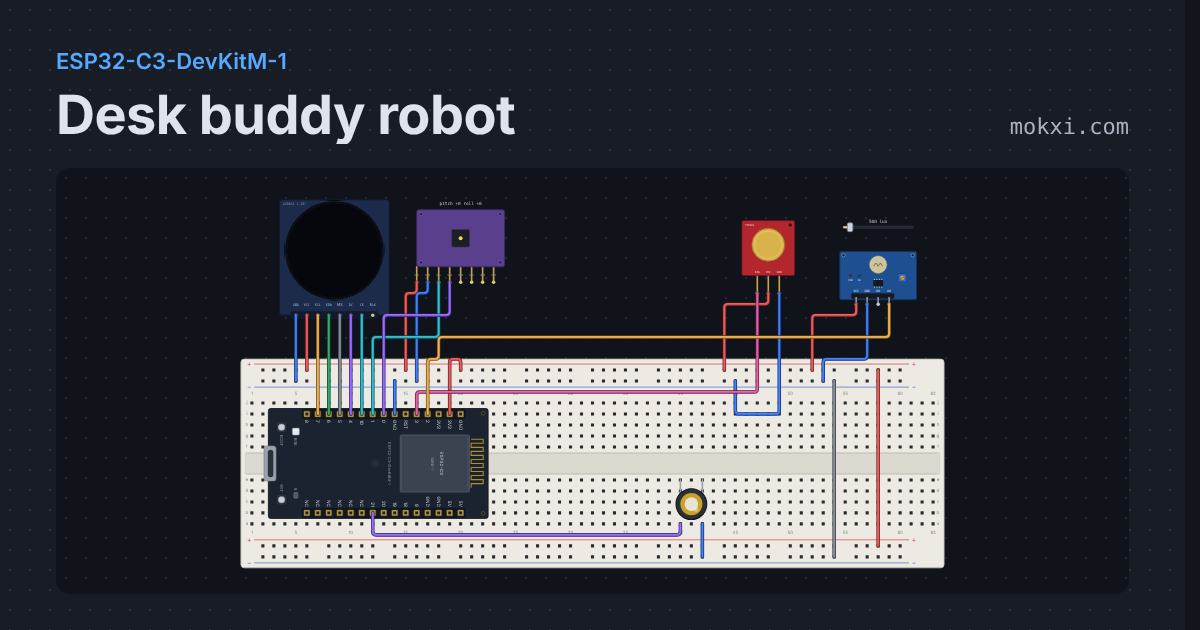
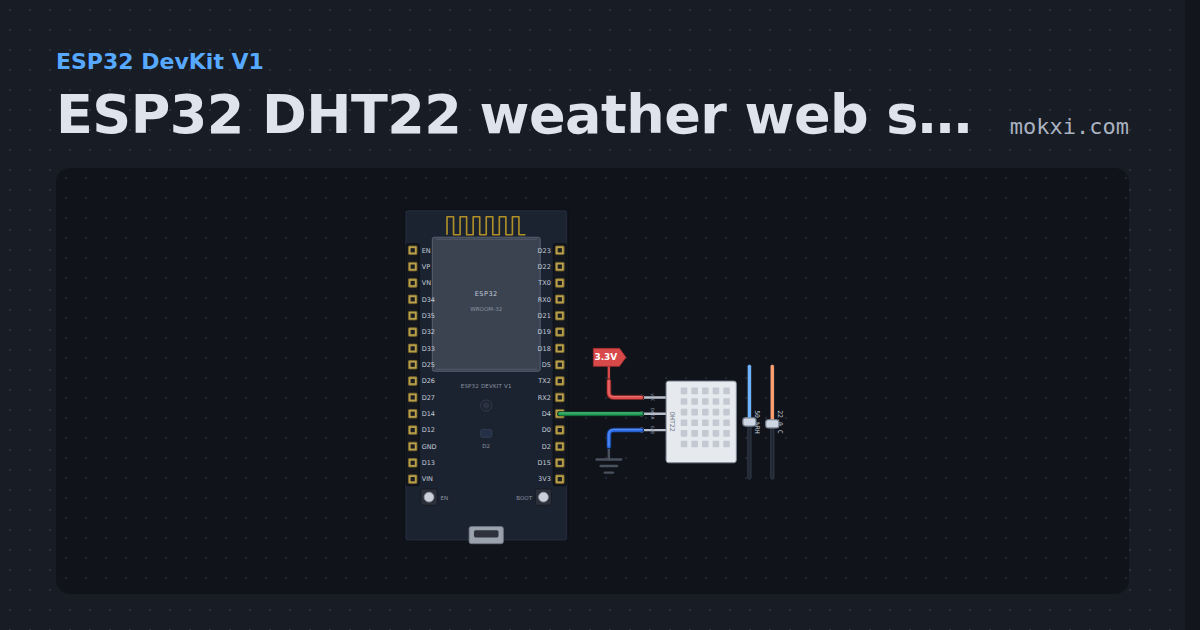
Every one runs in the editor exactly as it is drawn, ready to change.
What makers say about Mokxi.
“The AI checker helps check and correct my circuits, and it has way more components than Tinkercad. As a student I really appreciate the tool.”
“I’d been looking for a real online electronic simulator that was intuitive and complete when I found Mokxi. I was able to quickly import a Fritzing file and my Arduino sketch and start testing. Mokxi has all of the makings for the best online Arduino simulator I have been able to find!”
“I’m using Mokxi to develop and simulate an STM32-based four-wheel-drive robot car before building the actual hardware. It allows me to experiment with DC motor control, PWM, RPM measurement using photointerrupters, and different acceleration, braking, and reversing strategies, helping me understand and refine the system before implementing it in real life.”
Questions, answered.
Is it free?
Yes. The circuit on this page, every part in it and the editor it opens in are on the free plan, with no card.
Do I need an account?
No. The circuit runs the moment the page does, and the editor opens without one. A free account is only for saving a project to the cloud and sharing it by link.
How do I convert LM35 output to Celsius on an Arduino?
On a 5 V Uno, multiply the count by 500 and divide by 1023: a count of 51 is about 24.9 °C. That is the count turned into millivolts, then divided by the LM35’s 10 mV a degree.
What is the difference between an LM35 and a TMP36?
Both give 10 mV a degree. The LM35 reads 0 V at 0 °C and needs 4 V or more; the TMP36 reads 500 mV at 0 °C, so it can measure below zero on one supply, and it runs from 2.7 V. Use the formula for the part you have.
Can an LM35 read negative temperatures?
Not wired the usual way, with its ground leg on ground: it stops at 0 V, and here the count stops at 0. The datasheet’s full-range circuit adds a resistor from the output to a negative supply.
Do I need an account at all?
No. The editor, the templates, the gallery, the compiler and Run all work without signing in. Your browser keeps your work as you go. An account saves your projects online, so they follow you to any computer. It also gives you a link to share.
Which boards are supported?
Forty-five, all on the free plan. Arduino: the Uno R3, Uno R4 Minima and Uno R4 WiFi, Nano, Nano ESP32, Nano RP2040 Connect, Mega 2560, Leonardo, Micro, the Pro Mini in its 5 V and 3.3 V builds, and the SparkFun Pro Micro. ESP32: the classic DevKit V1, the ESP32-S3, the ESP32-C3 and C6 DevKits, the Espressif DevKitC V4, the Freenove ESP32-WROVER, the Wemos LOLIN32 Lite, the Wemos D1 R32, the Cheap Yellow Display, the TTGO T-Display, the ESP32-C3 SuperMini and the Seeed XIAO ESP32-C3, C6 and S3. ESP8266: the NodeMCU, the Wemos D1 mini and the ESP-01S. Also the Raspberry Pi Pico and Pico W, the Seeed XIAO RP2040, the Waveshare RP2040-Zero, the Seeed XIAO SAMD21, the WCH CH32V003, the STM32F411 Black Pill, the STM32 Nucleo-F411RE and the STM32F103 Blue Pill, the BBC micro:bit V2, and the ATtiny85 and the ATmega328P in its 16 MHz and 8 MHz builds, which plug straight into the breadboard as bare chips. Your own code compiles in the browser for all of them. Then the Raspberry Pi 4, Pi 5 and Zero 2 W computers, which run your Python with gpiozero and RPi.GPIO, with nothing to compile. Each board page lists what it can and can’t do. For example, the WiFi boards have pretend WiFi, not a real radio, and the page says so.
Is my sketch really compiled in the browser?
Yes. A real compiler (clang, built for the web) runs in your browser. It downloads once, and your browser keeps a copy. After that, every build happens on your own computer. There is no build server and no waiting in line, so there are no build minutes to run out of.
Which browsers work?
Any up-to-date Chrome, Edge, Firefox or Safari, on a computer, a phone or a tablet. They all support WebAssembly, which Mokxi needs, and they have for years.
Does it work on a phone?
Yes. The editor works with touch, the buttons are big enough to tap, and the layout fits a small screen. The simulation runs on the phone itself.
Can I try Pro before I pay?
Yes. Every account can try Pro free for 7 days, once. It takes a card, nothing is charged for those days, and if you cancel before they end you pay nothing. It starts when you choose it.
Can I cancel anytime?
Yes, in one press from your account page. Your plan runs to the end of what you paid for.
Do you offer refunds?
Yes, once per account. Write to us within 14 days of a payment and we refund all of it. Lifetime Pro is refunded in full within 14 days of buying it.
Is there a student discount?
Yes. Students get Pro at half price with a school email.
Do students need accounts?
No. The simulator works signed out, so your class starts from one link with nothing to sign up for. An account only adds cloud saving and sharing, and a student can make one later, or never.
Does it work on a Chromebook?
Yes. Everything runs on the machine in front of the student, so a Chromebook works as well as a lab PC.
What does it cost for a class?
Nothing, if your students only need to open and run circuits: the whole simulator is on the free plan. The class tools (a roster, starter projects, auto-graded checks, the gradebook) come with Pro and Classroom. Classroom is $9.99 a student a year, from 5 students, so at least $49.95 for the year. Your own seat is free, and from 50 students each one costs less. Your students get Pro’s room while they are in your classes. Pay by card, invoice or purchase order. Pro on its own runs classes for up to 10 students in all. To try the class tools with real students first, start the free 30-day trial from your class page: one class of up to 20 students, no card.
Is student work private?
Yes. A student’s projects in a class are always private: they cannot be opened by link or put in the gallery. One exception, and only for reading: a teacher may open, and never write, a project owned by somebody in a class they teach, which is what a card on the class wall does. What we store about a student, who processes it, how a school has it deleted, and how we handle COPPA consent for students under 13 and FERPA as a school official are all on the student data privacy page at /privacy/students.
Is Mokxi AI free?
Every signed-in account gets questions: 5 a day on a free account, 700 for the 7 days on the Pro trial, 3,000 every month on Pro and the other paid plans, and 25 a day on Lifetime Pro.
Does Mokxi AI work with ESP32 and Raspberry Pi Pico sketches?
Yes. It knows which board the project is on and answers for that board, from an Uno to an ESP32, an ESP8266, a Pico or an STM32.
Can Mokxi AI change my code without asking?
No. It proposes a change as a card. Accept is yours, and only appears once the changed code compiles; Ctrl+Z undoes it.
What does Mokxi AI send with a question?
Your project text, the matching help articles and the last six messages of the chat, never your name or account. "What is sent" shows exactly what went.
Latest arrivals in Mokxi.
More simulators
Each one opens on a circuit that is already running.
Take a temperature
Open the circuit, drag the temperature and read the count. Nothing to install, and no account needed.